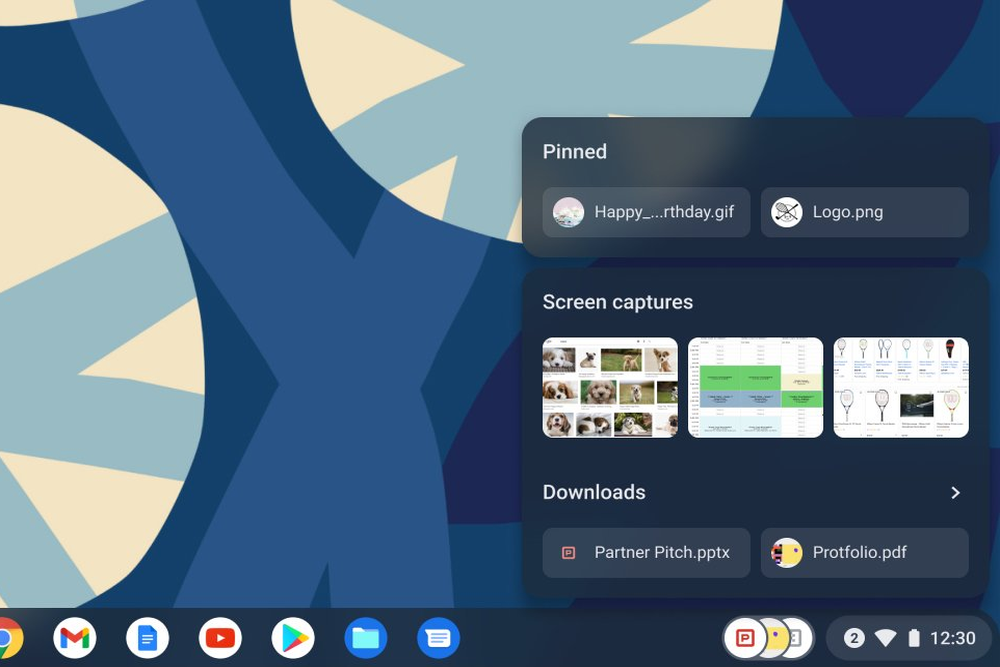
We’ve all taken a screenshot, only to have it disappear in a sea of icons on our desktop. Or downloaded a file to a computer…and struggled to find it again. And it can be hard to stay on task when you have to dig to find the document you need.
That’s why earlier this year, we introduced Tote – a holding area on your Chromebook shelf that keeps your important files right at your fingertips. Since we launched Tote, we’ve made it even better, with updates like access to files you’ve scanned, diagnostic reports, saved PDFs and more.
Here are a few tips to keep yourself organized and productive with Tote:
Pin important files for quick access
When you open Tote from your Chromebook’s shelf, you’ll find recent screenshots and downloads – files most people will want access to right away. If you want to keep a specific file handy indefinitely, click to “pin” it to Tote.
If you’re working on a project for a few weeks and know you’ll want to add the same logo across several presentations, spreadsheets and emails – just pin it. When you need the logo, drag and drop it from Tote into your document. It’s much faster than searching through your files every time. Plus, you can select and share multiple files from Tote at once.
Pin as many files as you’d like, and once you’re done with them, you can un-pin or remove them from Tote altogether with a right-click.