Google Pixel 7 e 7 Pro: non sottovalutateli soprattutto a questo prezzo! La recensione
Windows: il Patch Tuesday di ottobre 2022 corregge 84 falle
Con il Patch Tuesday di ottobre 2022 da poco rilasciato Microsoft ha corretto 84 falle su Windows, due di esse erano classificate come 0-Day.
Leggi Windows: il Patch Tuesday di ottobre 2022 corregge 84 falle

Continuous innovation to keep you safe online
Cybersecurity requires continual vigilance, whether it’s using built-in protections, or providing resources for changing security threats. In acknowledgement of Cybersecurity Awareness Month, we wanted to share our progress across a number of security efforts, and announce a few new technologies that help us keep more people safe online than anyone else.
Continuing our efforts to keep you safer online
In the past year, we’ve worked on various security upgrades, from making sign-ins easier and more secure, to spreading awareness of specific threats. Recently, we shared our experiences from the last decade of building a world-class security operation with a behind the scenes look at our elite security teams in the new HACKING GOOGLE docuseries. Now, we’re building on our work by providing educational resources.

Today, we’re officially launching the online safety lessons we announced earlier this year. The lessons feature Khan Academy founder, Sal Khan, and Google security experts, giving actionable tips to help keep your online accounts secure, browse the web safely, detect phishing attempts and more. Whether you’re a professional, parent, grandparent or student, these videos — and Khan Academy’s Internet Safety course — will help you stay safer even as new security risks emerge online.
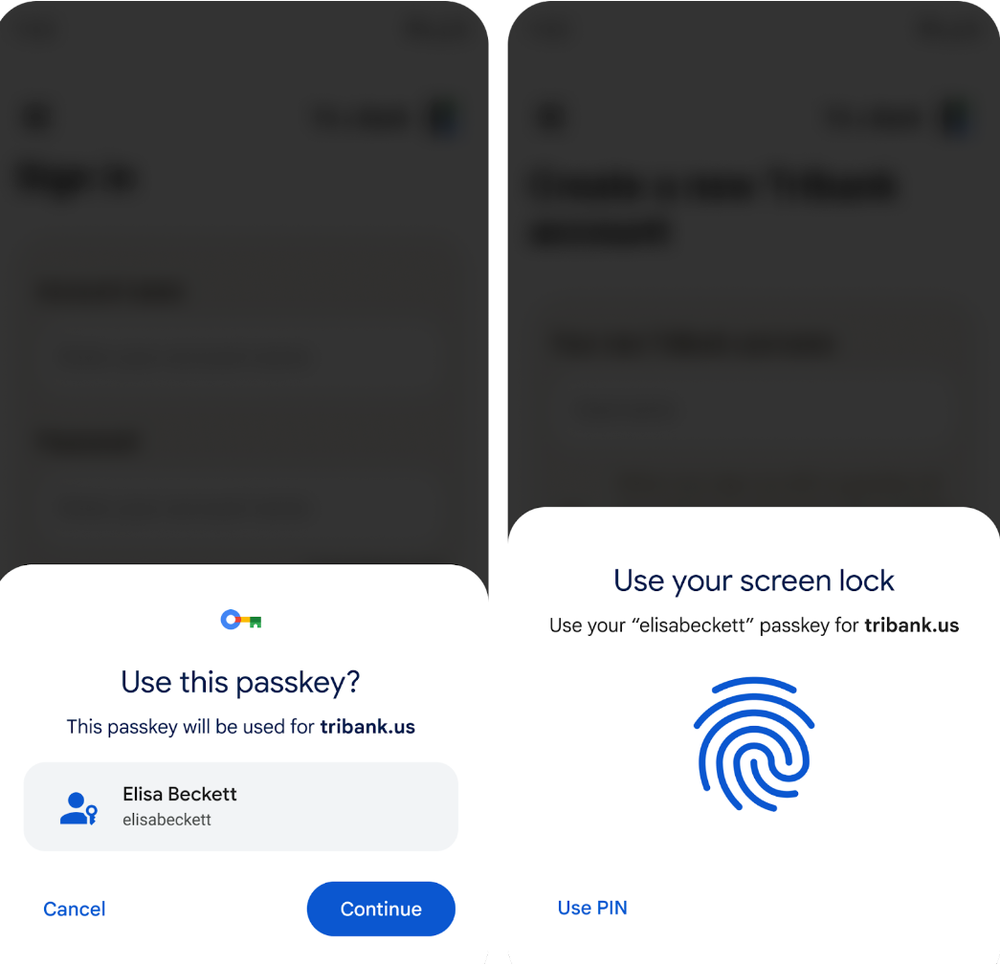
For years, we’ve been at the forefront of improvements to authentication technology, and earlier this year we shared the progress we’ve made on our Google Password Manager in Android and Chrome, and how we’re accelerating industry-wide progress toward a passwordless future. Today, we’re announcing the next stage in this journey with the release of passkey support for developers on Android and Chrome. General availability for everyone using Android 9 and higher will follow later in November. This is a critical step in the wide adoption of passkeys, which will work with your Google Password Manager to further simplify sign-ins across devices, websites and applications — no matter the platform. The best part? Instead of typing a password, you can sign in with whatever method you usually use to unlock your phone (passcode, fingerprint, facial recognition, etc.).
Partnering to protect high-risk users
With the U.S. midterm elections quickly approaching, we’re continuing to protect high-risk users, like journalists and campaigns, through our security tools and partnerships. Our Campaign Security Project with Defending Digital Campaigns provides organizations across the political spectrum with tools and resources to train candidates and campaign workers on how to stay safe online. To date, the program has trained over 5,300 election-related stakeholders over the course of 52 training sessions and workshops around the country — allowing us to better protect these high-risk individuals amid a changing threat landscape.
We’re also continuing to help protect democracies on a global scale by collaborating with leading organizations like the International Foundation for Electoral Systems (IFES). This collaboration helps high-risk users enhance their cybersecurity with the Advanced Protection Program (APP), our strongest form of account security for those at risk of state sponsored attacks. We’ve also continued to donateGoogle Titan Security Keys to high-risk organizations and individuals, which can be used as a form of 2-Step Verification (2SV) for advanced account security.
Products that keep you secure by default
For security to be effective, it has to be easy, which is why most of our protections are built-in and automatic. For example, Google Play Protect provides automatic, daily malware scanning on all the apps on your Android device, even when you’re offline. And our 2-Step Verification (2SV) requires just one tap to create secure, verified access to your account. Now Google is making it even easier to enroll in 2SV and get security notifications:
- 2SV enrollment with Google Assistant: Simply ask, “Hey Google, how do I set up 2-Step Verification?” If you’re not enrolled, Assistant will even remind you to sign up when you ask privacy and security questions, such as, “Hey Google, how do you keep my data safe?” We’re also making it easier to apply software updates — a critical step in securing your devices — by enabling auto updates via Google Home.
- Safety status: To further strengthen the security of your account, we’re making safety status on your Google Account easily visible as part of your profile picture across the apps you use every day. If anything on your account needs security attention, you’ll know right away. A simple yellow or red alert will highlight actions you should take to secure your account, so you never have to worry about missing a critical security update again.
- Safety Insights: We’re rolling out a feature in the Google app for iOS that gives you site-specific safety information — including a description of the cookies used by the site, alerts for unsecure sites and soon, reminders for passwords that may have been compromised. You can also access the “Results about you” tool, which allows you to request the removal of search results that contain your personal contact information (i.e., phone number, home address, email address) from search results.

Keeping your connections private and secure
We build our products with your privacy and security in mind. That’s why our latest Nest cameras and doorbells are designed for your security: They use encrypted video, 2SV, and the enhanced security of your Google Account. And today, we’re announcing that if you have a Pixel 4 or more recent model that uses Android 12 or above, your mobile traffic on the Google Fi cellular network is automatically encrypted and private.
As we continue into Cybersecurity Awareness Month, stay tuned for more updates — from keeping the upcoming elections safer, to moving us further into a passwordless world. Visit our Safety Center to stay up to date and learn more about how we’re making every day safer with Google.
Automatic privacy protections with Google Fi and Pixel
Whether you’re shopping for your family or sending emails for work, getting stuff done online can sometimes involve sharing personal information, like your credit card number or address. It’s important that this information is protected and kept private, no matter what network you’re connected to.
Every day, our teams help protect your personal information, working to ensure all Google products are secure by default, private by design and put you in control of your data. That’s why all Google Fi phone plans come with privacy and security features at no extra cost. And in honor of Cybersecurity Awareness Month, in addition to other announcements Google is making, today we’re sharing an update that makes it even easier to protect your personal information online when browsing.
Easier online protection if you’re a Pixel user on Fi
Starting today, we’re providing an added layer of protection: If you are a Pixel user, your mobile data traffic on the Fi cellular network is automatically encrypted and private. This feature is now available for the recently introduced Pixel 7, and earlier models down to Pixel 4, so long as they’re running Android 12 or above. That means you don’t have to take any additional steps to keep the content of your web browsing private on the Fi network — your mobile connection is private by design. You can learn more about this automatic cellular data encryption on Fi in our report and our Help Center.
And if you want protection for your Wi-Fi connections as well, you can still choose to enable the Fi Virtual Private Network (VPN) for an encrypted and private data connection on all networks — no matter what type of phone you have. Whether you’re using cellular data or Wi-Fi, once you enable the VPN, it encrypts your browsing and data activity, shielding you against attackers on unsecure networks (like public Wi-Fi) and preventing websites from using your IP address to track your location.
Privacy and security for data, calls and texts on Fi
The new privacy protection for your mobile data traffic that we’re announcing today is just our latest effort to help keep your personal information private and secure. It joins other privacy and security features already included in all Fi plans.
For example, with the Fi VPN for all phones, it’s easier to privately browse online. Plus, voice calls between Android phones on Fi already come with automatic end-to-end encryption, so the contents of your verbal conversations stay between you and the other Fi user you’re talking to. And when you and the person you’re text messaging use the Messages app and enable chat features, what you share via text — including photos and video — is kept private, too.
If you have a family or group using Android phones on Fi, this means the content of your communications with each other can be kept private, whether you’re browsing online, calling or texting each other.
These features are enabled by Protected Computing — a growing toolkit of technologies that transforms how, when and where data is processed to technically ensure the privacy and safety of your data. With Google’s continued investment in Protected Computing, we’ll work to continue delivering even more private experiences across our products.
Other ways we’re keeping you and your family safe
We’re committed to keeping your family’s personal information safe, no matter what plan or phone you choose. So all Fi plans come with privacy and security features such as spam call detection and blocking to stop identified robocalls and scams, all included at no extra cost. You also get extra layers of protection by default, including a robust account recovery process and notifications for suspicious activity. And family features allow you to block contact from strangers, set data budgets and share your location with family members.
To learn more about privacy and security on Fi, you can visit our website.

Ricerca web3alliance: INTERNET, WEB 3.0: INTERESSATO IL 75% DELLE AZIENDE, IL 64% LO STA STUDIANDO MA SOLO IL 4% LO UTILIZZA
 I dati emergono dall’indagine “Il futuro del Web3 e del Metaverso” svolta da The Innovation Group e Web3 Alliance, primo consorzio italiano delle aziende impegnate nel Metaverso, Blockchain, Intelligenza artificiale,…
SPI svela il primo Metaverse Space per Notizie TV a banda larga
 SPI International ha lanciato Casa FilmBox, il suo primo spazio nel metaverso. Lo spazio virtuale all’interno del metaverso di Spatial comprende un auditorium, sale riunioni, gallerie e sale espositive per…
Grande successo per il primo Festival del Metaverso in Italia: in presenza e da remoto oltre 250.000 utenti unici
 L’evento dell’Associazione Nazionale Giovani Innovatori ha visto la partecipazione degli attuali attori, nazionali e internazionali, della trasformazione dell’infosfera Successo di pubblico, superando ogni aspettativa, per il primo Festival del Metaverso…
Come leggere PDF su iPad, modificarli e unirli
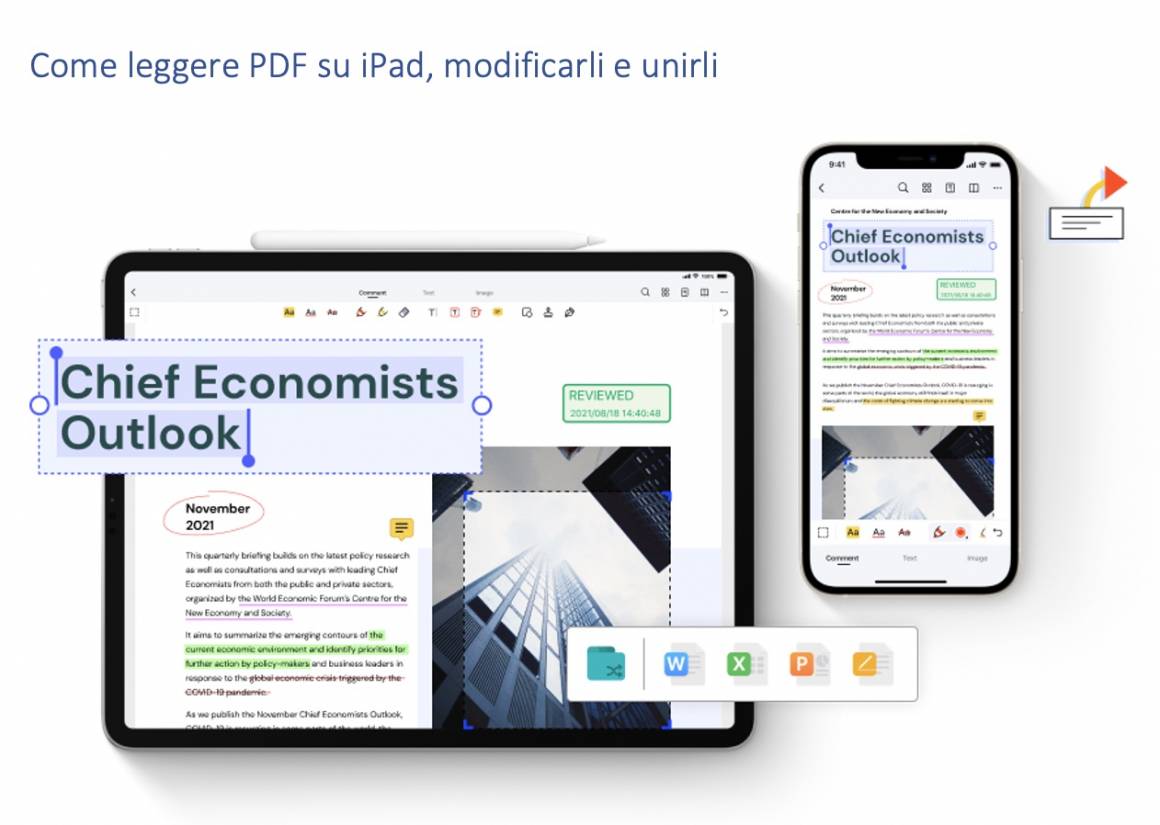 Sono tantissime le persone che, ogni giorno, utilizzano il proprio iPad per sviluppare, modificare e trasferire documenti PDF. Si tratta di studenti, per esempio, che in virtù della leggerezza e…
Windows 11 2022 Update: problemi con Windows Hello
Molti utenti stanno segnalando problemi legati all’uso di Windows Hello su 11 2022 Update, ma Microsoft ha già pronto il correttivo.
Perché dovresti migliorare oggi le performance del tuo sito
Un sito web lento può essere frustrante per gli utenti, ma soprattutto danneggiare la tua SEO. Come risolvere? Con Cloud Accelerator, il miglior servizio di cache offerto da Serverplan.
Leggi Perché dovresti migliorare oggi le performance del tuo sito
Linux 6.1: arrivato il merge dell’AMD Platform Management Framework
Linux 6.1: i coder del progetto hanno eseguito il merge dell’AMD Platform Management Framework
Leggi Linux 6.1: arrivato il merge dell’AMD Platform Management Framework
Drive with Zombies (or run from them) this spooky season
As October 31st nears, spooky season is upon us. And it’s brought Zombies to Waze. Starting today, enter a Zombified Waze world on your next drive. You can choose to team up with an expert escapist to avoid the Zombies, or take your chance and get to know a member of the undead with a Zombie itself.
Activate your voice navigation to adventure with the Survivalist by your side to learn the best skills for staying away from the slow-moving menaces. You’ll ride with all the gear you need for surprises along the way when you change your vehicle guide to the Escapemobile, and show off your strength to other drivers with the Survivalist Mood.
If you’d rather a Zombie guide your way, select the Zombie voice navigation and find out if the rumor that these monsters think with their brains is really true. Switch to the Zombie Mood to show your allegiance to the misunderstood undead. And to get the full zombified experience, swap out your navigation arrow for the Zombieombile.
Activate the Zombie experience by visiting Waze or clicking “My Waze” in your app. Tap the “Drive with Zombies” banner to activate. Available globally with voice navigation in English, French, Spanish and Portuguese.
Rientro della Crew-4 con Samantha Cristoforetti previsto per il 13 ottobre
La NASA ha comunicato che l’equipaggio della missione Crew-4 rientrerà sulla Terra dalla Stazione Spaziale Internazionale a bordo della Crew Dragon Freedom il 13 ottobre, con ammaraggio previsto per le 17:41 EDT (le 23:41 ora dell’Europa centrale). Qualora le condizioni meteo nella zona di ammaraggio non fossero favorevoli, potranno esserci degli slittamenti d’orario.
Bob Hines, Kjell Lindgren, Jessica Watkins e Samantha Cristoforetti si congederanno dalla Stazione il 12 ottobre alle 10:05 EDT (16:05 CET) dopo che Samantha Cristoforetti, attualmente comandante della Stazione, avrà ceduto il comando al cosmonauta russo Sergey Prokopyev.
I portelli della capsula Crew Dragon e della Stazione verranno chiusi a partire dalle 17 EDT (23 CET); lo sgancio è previsto per le 19:05 EDT (1:05 CET del 13 ottobre). Per garantire la corretta illuminazione della zona di rientro, la Freedom resterà in volo autonomo per circa 20 ore per ammarare appunto intorno alle 17:41 EDT (23:41 CET) del 13 ottobre in una delle sette zone possibili di ammaraggio nell’Oceano Atlantico e nel Golfo del Messico, al largo della Florida.
How to restore a browser window you just closed by accident
Most browser tabs are full of good intentions, from articles you meant to finish reading to emails deserving of a reply. And it makes sense to feel anxiety over accidentally losing them: One wrong click or errant keystroke and you might trigger an extinction-level event on your precious tabs.
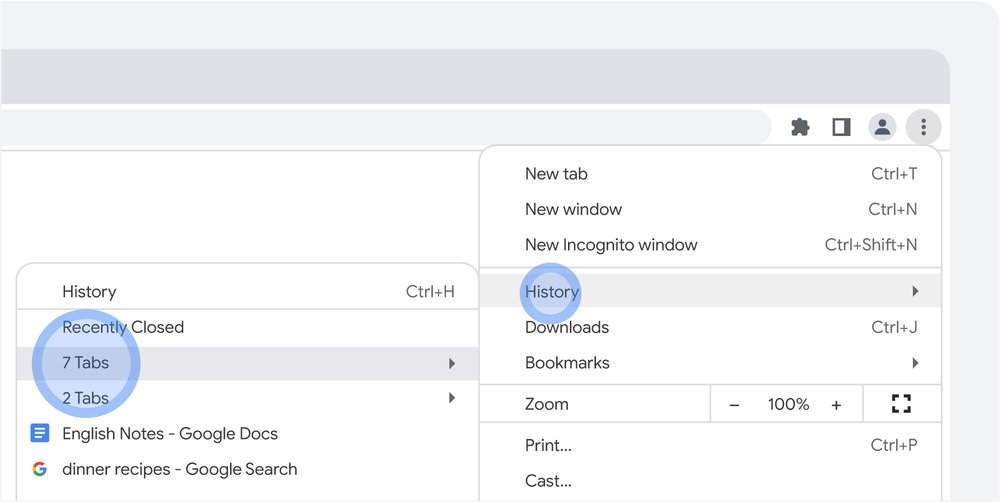
Chrome users, thankfully, have a built-in safety net designed to instantly reverse this panic-inducing outcome. Follow these simple steps to restore a recently closed browser window — and all of your tabs with it — that you may have shut by mistake:
- Click the three dots in the top right corner of an open Chrome window.
- Hover over “History.”
- Click the first option on the drop-down menu under “Recently Closed” to open the last window you shut. (If a recently closed window had multiple tabs, the number of tabs will show in the drop-down menu.)
- Click on “Restore Window.”
To make this process even simpler, you can use the keyboard shortcut Control/Command + Shift + T, which will bring up a window of all the tabs you just closed out.
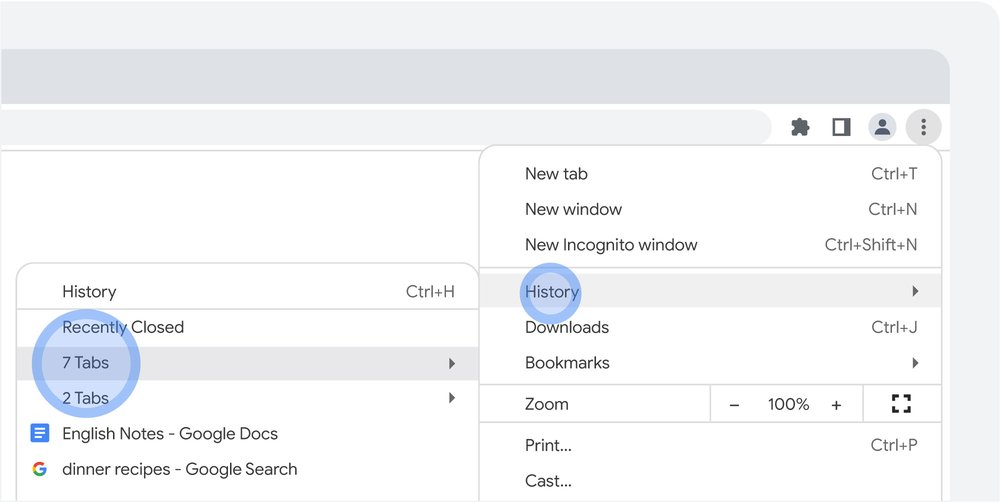
Restoring recently closed windows takes just a few clicks.
That’s it. But if you want to rest even easier, you can build in an additional safeguard to preserve and restore the tabs you visit most frequently using Chrome’s “bookmark all tabs” feature.
To do that:
- Open your browser window and arrange your tabs the way you want.
- Navigate to the same Chrome drop-down menu as above and hover over “Bookmarks.”
- Click “Bookmark All Tabs.”
- Chrome will open a prompt to bookmark all the tabs into a new or existing bookmark folder.
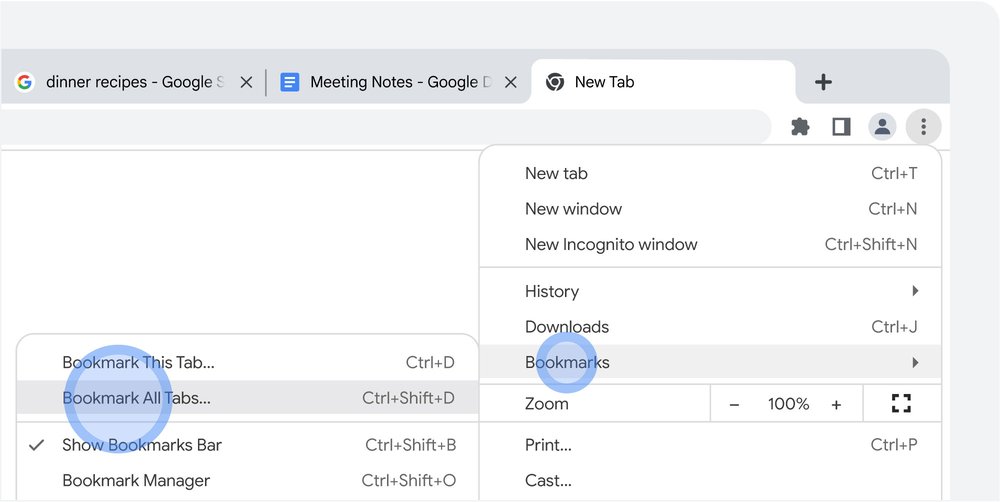
Bookmarking all your tabs in Chrome is one easy way to keep your browsing organized.
Now you can restore any browser window in seconds, any time, with your favorite tabs arranged just the way you like them.
Helpful as these features are, they’re just the beginning of what Chrome can do to keep you organized. See for yourself: Five members of Google’s Chrome team recently revealed the beginner-friendly tricks they use to restore hours of productivity every week. And now you can feel safe opening that article in a tab to read later.