Lampadine smart E27 Aigostar compatibili Alexa (pacco da 5): offertona su Amazon
Speaker Bluetooth con torcia POTENTE a 19€: un gadget da avere
Samsung Galaxy Tab A8, è sfida sconti in famiglia con l’S8: mai così conveniente
Teclast M40S, la risposta economica ai tablet Samsung è da comprare subito
MacBook Air M2, eBay GIOCA DURO sul prezzo: offerta top per l’autunno
Assicurazioni viaggio e carte prepagate: quale scegliere?
Samsung Galaxy Watch4, il BELLISSIMO smartwatch CROLLA su eBay
Mega kit per il fai da te da FAVOLA: 103 pezzi Bosch tra punte, frese e bit a 35€
Xiaomi Redmi Note 11 Pro+ 5G: smartphone top a prezzo mini

Il Progetto NFT_OUT debutta a Milano sul maxi ledwall Mediamond di Piazza Cavour portando la Cryptoarte NFT nel mondo reale
 Il Progetto NFT_OUT debutta a Milano sul maxi ledwall Mediamond di Piazza Cavour portando la Cryptoarte NFT nel mondo reale e coinvolgendo il grande pubblico con l’artista NFT Edaxer e…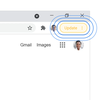
The 5 best ways to stay secure online with Chrome
We designed Chrome to be secure by default, protecting you from dangerous and deceptive sites that might steal your passwords or infect your device. Chrome pioneered many of the techniques that are now foundational to browser security (such as sandboxing and site isolation), and with recent advances like predictive phishing protection, you can be confident that we’re using the latest technology to keep your data safe.
But what can you do yourself to make sure you stay safe online? To mark Cybersecurity Awareness Month, we talked to a few Chrome security engineers to share a few pieces of advice:
Keep Chrome up to date
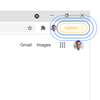
Hundreds of security engineers across Google work to keep Chrome safe against the latest threats, and those improvements come out at least every two weeks. “We try to shorten the time between when a security bug has been discovered or reported and when a fix is released,” says Amy Ressler, a security technical program manager. “No matter how fast we work, we know motivated adversaries are looking for opportunities to exploit the ‘patch gap’ between when we release the fix and when some users update to the newest version.” Chrome checks for updates regularly, and when one is available, Chrome downloads it immediately and then applies it when you close and reopen the browser. But if you haven’t closed your browser in a while, you may have a pending update visible in the upper right corner of the browser window. To apply the update, click “Update” or simply close and reopen Chrome. Don’t worry: You won’t lose your tabs, and it will only take a few seconds.
Store strong, unique passwords with Google Password Manager
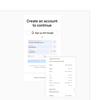
Using a password manager (even if it’s not Google’s) will help you store and use a strong, unique password for each site you log into. “If your password is compromised through a phishing attack or a security breach,” security software engineer Nwokedi Idika says, “using a unique password on every site reduces its value to an attacker because it only provides access to a single site — not multiple ones.” If you’re using a password manager to store “fido1234” as your password for every site, you’re not making the most of the tool. Google Password Manager can suggest and save a strong, unique password of gobbledygook (like KZamPPzj43T9mQM). Then, Chrome will autofill the password next time you need it — on any device. Chrome should suggest a new strong password when creating a new account, or you can always right click in the password field and click “Suggest Password.”
Don’t ignore Chrome’s download warnings
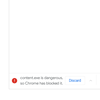
Chrome and Safe Browsing work to ensure that we warn you about dangerous downloads when possible. When you see a download warning, you can still download the file, but we strongly recommend against it. Computers are often compromised by malware because people misunderstand or ignore warnings. “We hear feedback from people that think Google disapproves of that download or software, so they ignore the warning,” says software engineer Daniel Rubery. “But the file is actually malicious!” We are constantly working to remove warnings that aren’t useful; for example, we recently reevaluated our list of dangerous file types which reduced low risk warnings by more than 90%. This means you can trust that a download warning really means danger.
Browse the web with Enhanced security protection
To be even more secure while browsing the web in Chrome, turn on Enhanced Safe Browsing protection in your Chrome settings. It substantially increases protection from dangerous websites and downloads by sharing real-time data with Safe Browsing. “This is how you can get the most out of Chrome’s security features,” recommends security software engineer Javier Castro. “By enabling enhanced protection, you are letting Chrome use the latest threat intelligence and the most advanced user protections to keep you safe while you browse.” If you’re signed in, Chrome and other Google apps you use (Gmail, Drive, etc) will be able to provide improved protection based on a holistic view of threats you encounter on the web and attacks against your Google Account. As a result, people using Enhanced Safe Browsing are successfully phished 20-35% less.
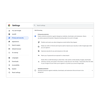
Protect your Google Account with 2-step verification
Two-factor authentication can use your phone to add an extra step to verify that it’s you when you sign in. Signing in with both a password and a second step on your phone protects against password-stealing scams. Software engineer Diana Smetters says, “It’s simple to turn on, and you only have to use your phone the first time you sign in on each of your devices. If an attacker gets your password online and tries to sign in, they’ll be blocked because they don’t have your phone.” If you sign into Chrome with a Google Account, be sure that you’re enrolled in 2-step verification to protect your account.
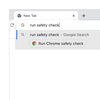
To stay even safer online, take a few minutes this month to update Chrome, start using Google Password Manager, turn on Enhanced Safe Browsing and enroll in 2-step verification. One last tip–you can always confirm your use of security features by running Safety Check in Chrome settings.

Watch With Me on Google TV: Leslie Odom Jr.’s watchlist
Movies and TV can make us laugh, cry and even shape who we are. Our watchlists can be surprisingly revealing. We’re teaming up with entertainers, artists and cultural icons on ourWatch With Me series on Google TV to share their top picks and give you a behind-the-scenes look at the TV and movies that inspired them.
Musician and Tony Award-winning actor Leslie Odom Jr. believes the best storytelling makes you truly feel something — both as the performer and as the viewer. Leslie explains, “If you’re lucky as an artist, you work on something that you’re inspired to work on.” And he’s inspired most by film and TV that incorporate music in new ways.
Leslie also loves the challenge of a spooky story. “It’s great fun to look in the face of something that scares you and survive it,” he says.

We sat down with Leslie to dig in more on his favorite film and TV show picks.
What did you learn from making your watchlist?
Leslie Odom Jr.:Making this watchlist reaffirmed for me that I like well-made things. I like miracles. I like when something special is made that took tremendous planning, preparation and craftsmanship.
Which genre do you go back to over and over again?
Odom: Horror is my favorite genre and contains so much. There’s funny horror movies, thrillers and suspense. Those were some of the biggest movies of the ‘80s and of my childhood that set me on this horror fan path.
How did you persuade your parents to let you watch horror as a kid?
Odom: My parents knew that those movies brought me such joy, and they didn’t want to keep me from that joy.
Who do you nerd out with when it comes to film and TV?
Odom: My father-in-law is in the [entertainment] business and is probably the person that I connect with most about movies. We talk about everything from performances and directors to hopes and dreams. He loves movies, too.
Do you experience movies differently when you’re by yourself?
Odom: I was in my twenties the first time I went to the movies by myself. I didn’t know you could do that. I would stay all day and see back-to-back movies.
What are your must-haves for the best viewing experience at home?
Odom: The best sound system you can afford, frozen yogurt and a comfy couch.
Check out Leslie’s watchlist to see the incredible movies and shows that inspired this powerhouse actor, musician, and horror fan on Google TV, rolling out over the next few days. Share your favorites as well using #WatchWithMe.

Il Plan B Forum DI LUGANO apre a tutti
 Dal 27 al 30 ottobre saranno offerte alla cittadinanza una serie di iniziative gratuite sui temi Bitcoin e blockchain Il Plan B Forum del 28-29 ottobre diventa anche OPEN. Con…
Ci credi che con questo tablet puoi avere un’esperienza premium con soli 119€?
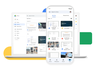
Workspace Individual adds storage, mail merge and global regions
Since launching Google Workspace Individual last year, we’ve seen customers from around the world grow their businesses, connect with their customers in more meaningful ways, collaborate with partners, get organized and look more professional. Business owners have told us the familiarity of our tools helps them get more done. And today, we’re offering even more features for Workspace Individual users. We’re announcing an increase to storage capacity and advances in email personalization for all customers. We’re also expanding our regional availability to bring Google Workspace Individual to even more business owners around the world.
Grow your business — and the number of files you can store
Soon every Google Workspace Individual account will come with 1 TB of secure cloud storage. You don’t have to lift a finger to get the upgraded storage: Every account will be automatically upgraded from their existing 15 GB of storage to 1 TB as we roll this out.
As you grow your business, it’s only natural that you’ll have more docs, data and digital assets to manage and store, and Google Drive allows you to do so securely from any device. You can store over 100 file types in Drive, including PDFs, CAD files and images, and you can easily collaborate on and edit Microsoft Office files without converting them. Plus, Drive comes with built-in protections against malware, spam and ransomware so you don’t need to worry about accidentally opening the door to malware just by opening a doc.
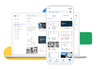
Store over 100 file types in Google Drive
Personalize emails with built-in mail merge
We previously launched multi-send mode, which allows you to easily email many recipients while maintaining their privacy, making it great for sending newsletters and announcements. Now you can add mail merge tags like @firstname to multi-send emails, so each recipient receives a unique email that feels individually crafted just for them. By default, multi-send emails also include an unsubscribe link so recipients can opt out of future messages.
Try mail merge in web Gmail with other premium Workspace features like customizable email layouts to better engage your audience.
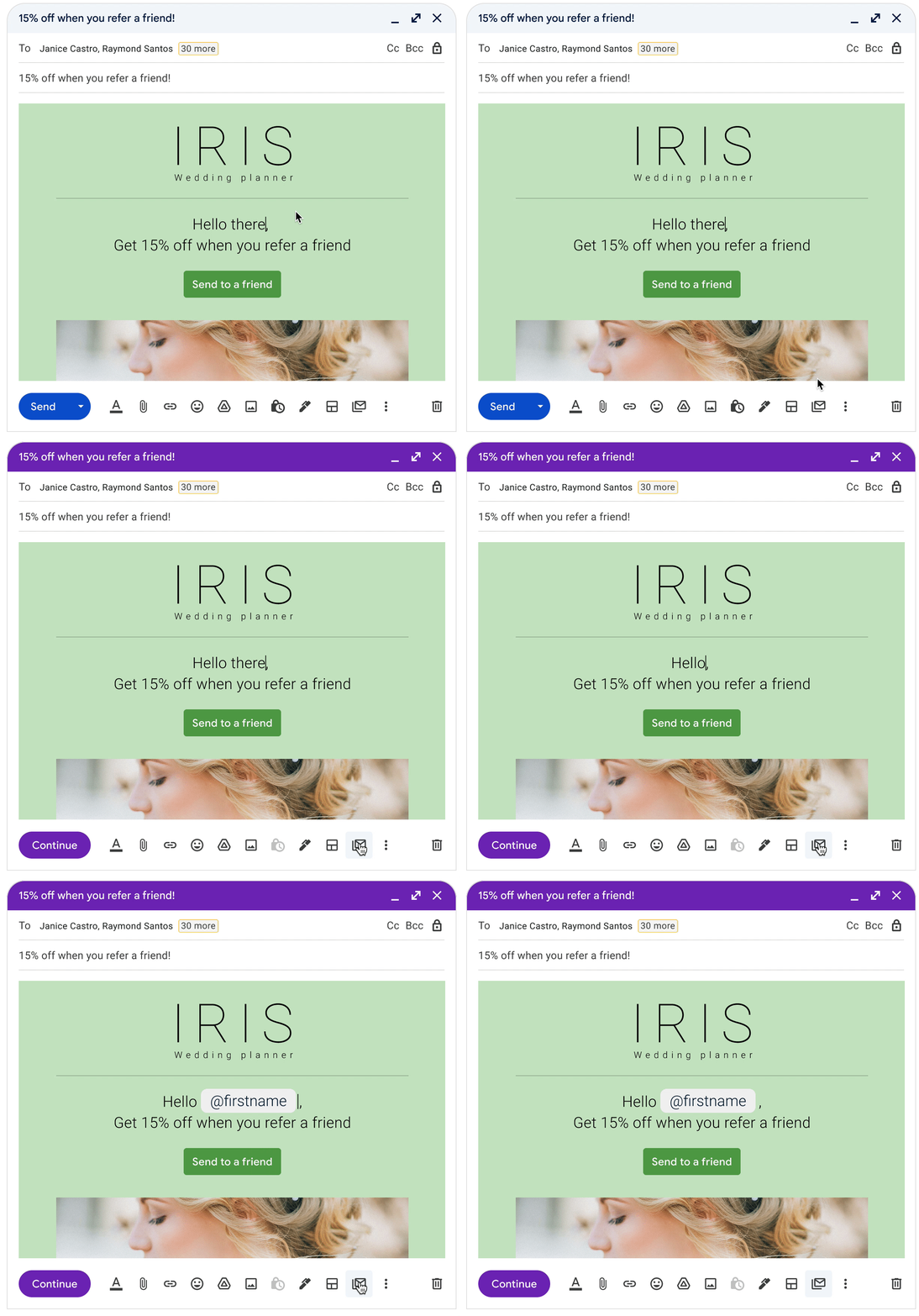
Mail merge tags makes it easy to personalize multi-send emails
Expanding the reach and helpfulness of Workspace Individual
We’re also launching Google Workspace Individual in a number of new countries and regions: the Philippines, Vietnam, Indonesia, Malaysia, Taiwan, Thailand, the Netherlands, Portugal, Belgium, Finland, Greece and Argentina. These new countries join a growing list of places business owners can sign up for Workspace Individual, including the U.S., Canada, Mexico, Brazil, Japan, Australia and six countries across Europe.
As we expand the footprint for Workspace Individual, we’re also deepening the functionality, building on Premium Meet, eSignature in Google Docs, appointment scheduling, and flexible layouts and multi-send in Gmail. See thefull list of new and coming-soon features.
Sign up today with a 14-day trial
Sign up for Google Workspace Individual today with a 14-day trial, or learn more about Google Workspace Individual on our website. If you’re not a business owner but still want premium productivity capabilities and more storage for personal use, check out our Google One plans.