Samsung Galaxy Watch 4 Classic 46mm: prezzo shock su Amazon (-45%)
Disney+, 5 cose da vedere ad agosto 2022
CyberGhost: VPN no-log a meno di 2€ al mese

Robot a base di ragni morti. Perché? PERCHÉ?

Ci sono invenzioni delle quali non si può più fare a meno una volta che vengono fatte, e invenzioni delle quali si vorrebbe fare subito a meno e anzi ci si chiede perché mai siano state fatte. Una di queste ultime arriva da un gruppo di ricercatori della Rice University, in Texas. Se avete paura o disgusto dei ragni come me, tenetevi forte.
Questi ricercatori hanno pubblicato sulla rivista Advanced Science un articolo che descrive un loro esperimento, nel quale hanno usato un ragno morto come elemento di presa di un mini braccio robotico, simile a quegli artigli presenti in certi giochi da luna park. Le otto zampe del cadavere sono state rianimate per afferrare piccoli oggetti aventi forme irregolari o per azionare interruttori.
La forza di presa di questo apparato per nulla inquietante è tale, a detta dei ricercatori, che è possibile afferrare oggetti che hanno fino al 130% della massa dell’ex ragno. Può essere confortante, a modo suo, l’osservazione dei ricercatori che i cadaveri di ragno diventano meno efficienti man mano che aumentano le loro dimensioni, per cui perlomeno non rischiamo di trovarci attorniati da robot che hanno ragni giganti morti al posto delle mani.
Le motivazioni dell’esperimento sono meno morbose di quel che si potrebbe pensare. Usare un cadavere di ragno, spiegano gli autori, è di gran lunga più semplice ed economico rispetto a progettare e fabbricare un manipolatore meccanico convenzionale miniaturizzato. Inoltre l’aracnide è molto durevole, dato che “può reggere 700 cicli di azionamento prima dell’inizio del deterioramento” e soprattutto è biodegradabile quando non serve più, e questo elimina l’impatto ambientale che avrebbe una soluzione tradizionale.
Anche la scelta specifica del ragno, invece di qualche altra creatura meno controversa, ha ragioni tecniche ben precise: le zampe dei ragni, infatti, “non hanno coppie di muscoli antagonisti; hanno invece soltanto muscoli flessori” che le fanno contrarre verso l’interno, mentre si estendono verso l’esterno grazie alla pressione dell’emolinfa, che è grosso modo l’equivalente del sangue negli artropodi. Questo significa che se si riesce a generare e controllare una pressione equivalente a quella dell’emolinfa è possibile comandare il movimento di apertura e chiusura delle zampe di un ragno morto, trasformandole in un dispositivo di presa di precisione.
I ricercatori della Rice University hanno quindi usato una siringa per pompare nel corpo del ragno dell’aria ed aspirarla, variando così la pressione interna e ottenendo un’apertura e contrazione delle zampe, ideale per la manipolazione delicata di piccoli componenti elettronici. Questa tecnica è stata chiamata dai ricercatori necrobotica.
Va detto che i ricercatori, e in particolare la studentessa laureata Faye Yap che ha avuto l’idea dell’esperimento notando un ragno morto raggomitolato e chiedendosi il motivo di questa posizione, lavorano in un laboratorio specializzato nella cosiddetta soft robotics, ossia “robotica morbida”, che cerca di evitare le materie plastiche, i metalli e l’elettronica e preferisce usare materiali non tradizionali. Per cui l’idea di usare un cadavere di aracnide non è del tutto stravagante. Perlomeno per questi ricercatori.
Se ci tenete, i video degli esperimenti di presa e rilascio tramite ragno siringato sono disponibili, insieme al testo integrale dell’articolo dei ricercatori, su Disinformatico.info. E se ora avete bisogno di levarvi dagli occhi l’immagine del ragno necrobotico zombi, vi propongo come antidoto una pucciosissima lontra, molto viva, vispa e affamata. Meglio, vero?
Fonti aggiuntive: Ars Technica, Rice University, The Register.
Monitor IPS Acer Nitro con FreeSync e refresh 144 Hz: prezzo bomba su Amazon
In offerta su Amazon il monitor Acer Nitro XV340CKPbmiipphzx con tecnologia FreeSync da 34″ e display IPS QHD
Leggi Monitor IPS Acer Nitro con FreeSync e refresh 144 Hz: prezzo bomba su Amazon
POCO M3 Pro 5G (Cool Blue) PREZZO FOLLE su eBay
4 ways to use Touch to Search on Chrome
Whether you’re on a vacation or just running to your next work meeting, we want to make it easier for you to quickly find information without having to type things out on a cramped smartphone keyboard. That’s why we introduced “Touch to Search” in the Chrome app for Android a few years ago. Touch to Search lets you do things like press on specific words on web pages to quickly search them, whether it’s to learn more about a place of interest or get help with a translation.
Here are four helpful tips on how to make the most of Touch to Search when you’re on the go:
1. Get faster translations.
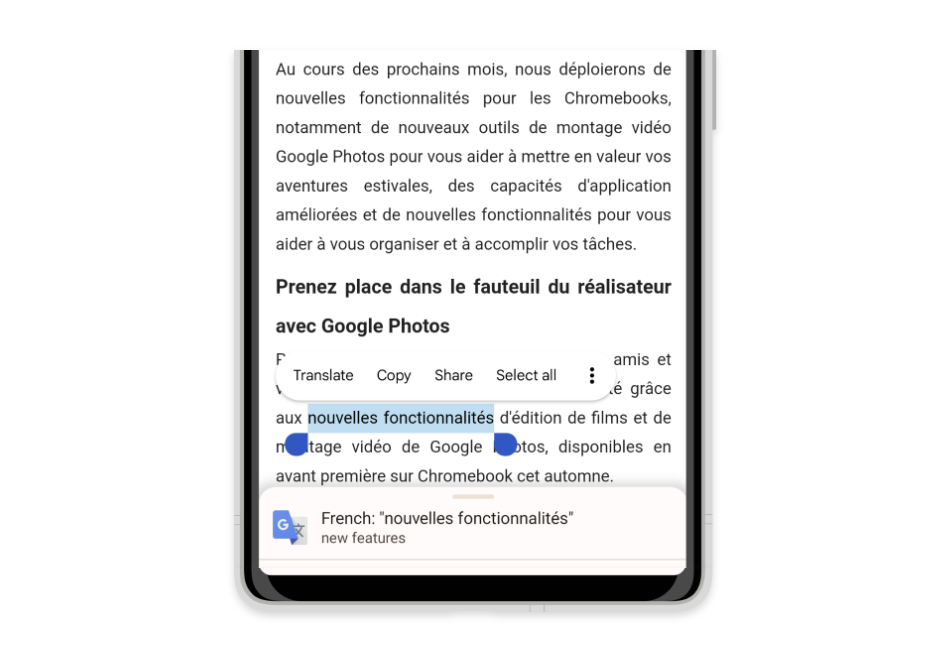
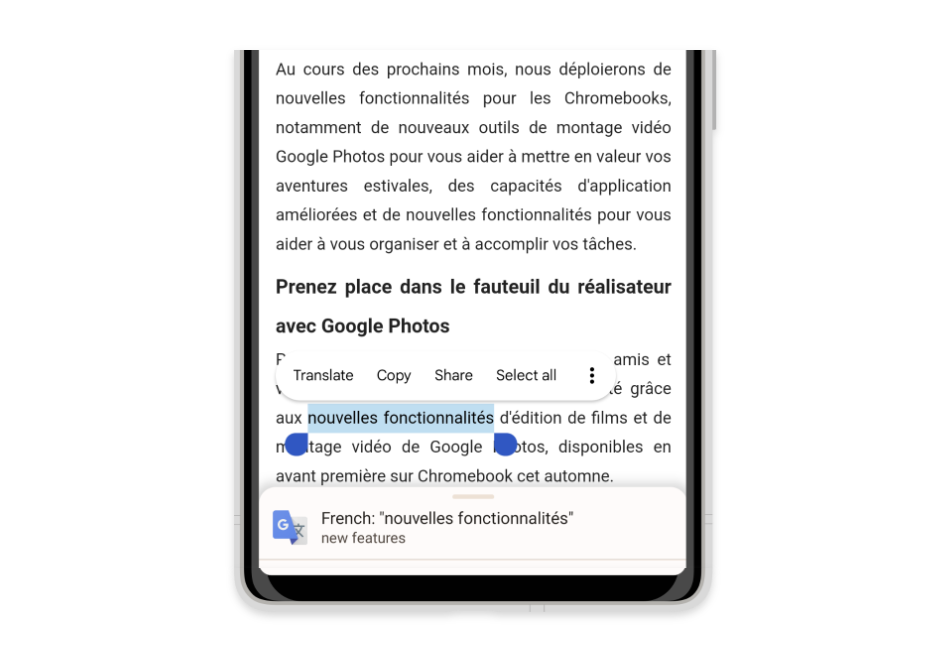
Let’s say you’re checking out the menu of a new restaurant and you come across a French phase you don’t understand. Press on the word, and if you’ve fully enabled Touch to Search in Settings, you’ll see an immediate translation in the bar on the bottom of your screen. You can also tap or swipe up on the bar to visit a search results page for the word you selected. Of course, Chrome can also automatically translate a full page in your desired language.
2. Get helpful info in context.
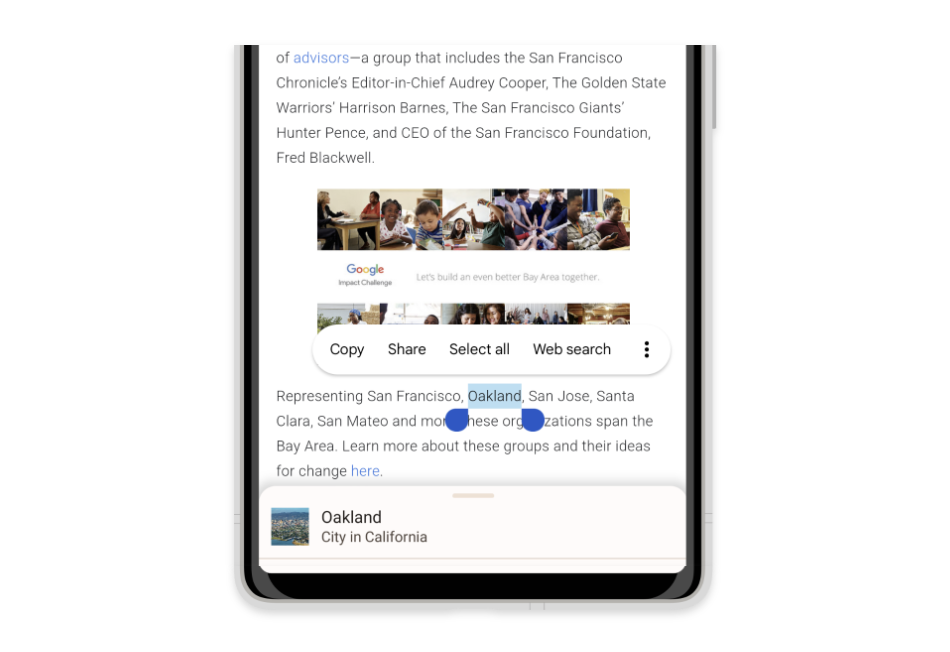
In addition to translations, if you stumble across a person, word or place you’re unfamiliar with, Touch to Search can get you up to speed — right in context. Press on the word in question, and you’ll see an informative card from Touch to Search.
3. Tap or hold down to get results.
When we say “press” on words, that means you can usually tap or hold-down on words to activate Touch to Search, so it’s simple for you to search in context. Recently, we standardized what happens when you tap and when you hold down, so you’ll get the same experience of Touch to Search regardless of which gesture you prefer. One caveat: There’s some sites on the web with unique interfaces which disable tapping words, so if you encounter that, try holding down instead.
4. Use more simple settings.
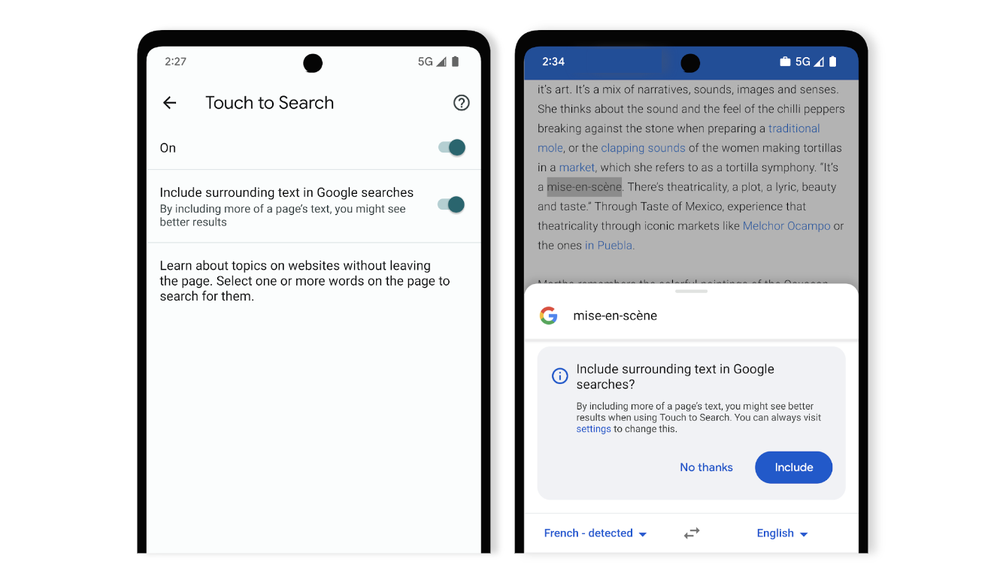
We want controlling your settings in Chrome to feel intuitive, so we updated Touch to Search’s settings to give you more fine-grained control over how you want to use the feature. Now when you enable “Include surrounding text in Google searches,” you’ll be more likely to get high-quality results – including through translations and definitions right on the page.
There’s more to come
We’re always exploring more ways to make it easier to search on-the-go in Chrome. One feature we’re testing out is related searches. This adds suggestions into Touch to Search that are based on what you’ve selected, to make it simple to learn even more about what you’ve just seen. For example, if you select the words “San Francisco,” we could show helpful suggestions like “San Francisco population” or “San Francisco events.” We’re continually exploring ways to make it easier to find information in Chrome, including the unique needs people have when searching on their Android or iOS phones. Look out for more features soon.
Logitech Pebble, il mouse silenzioso da ACQUISTARE (-38%)
Aspirapolvere senza fili e via: spesa sotto i 100€ ma comodità TOP
<div>How we’re improving search results when you use quotes</div>
Sometimes people know they absolutely, positively only want webpages that mention a particular word or phrase. For example, maybe you want to find out about phone chargers but only those that support wireless charging. Fortunately, Google Search has a special operator for that: quotation marks. Put quotes around any word or phrase, such as [“wireless phone chargers”], and we’ll only show pages that contain those exact words or phrases.
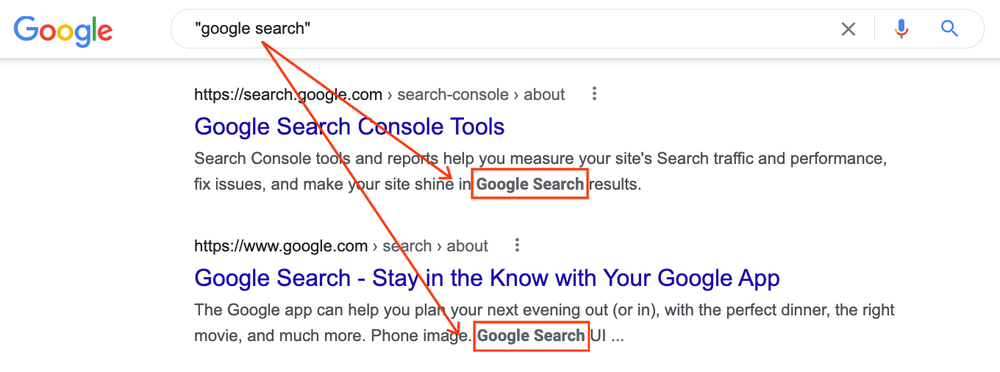
Now we’re making quoted searches better. The snippets we display for search results (meaning the text you see describing web content) will be formed around where a quoted word or phrase occurs in a web document. That means you can more easily identify where to find them after you click the link and visit the content. On desktop, we’ll also bold the quoted material.
For example, if you did a search such as [“google search”], the snippet will show where that exact phrase appears:
![Picture of Google search results for ["google search"] showing two listings and how the words "google search" are bolded in the snippets for each listing.](https://www.bluermes.it/site/wp-content/uploads/2022/08/quotesinSearch.max-1000x1000-1.png)
In the past, we didn’t always do this because sometimes the quoted material appears in areas of a document that don’t lend themselves to creating helpful snippets. For example, a word or phrase might appear in the menu item of a page, where you’d navigate to different sections of the site. Creating a snippet around sections like that might not produce an easily readable description.
We’ve heard feedback that people doing quoted searches value seeing where the quoted material occurs on a page, rather than an overall description of the page. Our improvement is designed to help address this.
Things to keep in mind about quoted searches
For those doing quoted searches, here are some more tips, along with caveats on how quoted searching works.
Quoted searches may match content not readily visible on a page. As referenced above, sometimes quoted searches match content contained within a web page that isn’t readily visible, making it seem like the content isn’t on the page when it actually is present.
For example, content in a meta description tag is looked at for matches, even though that content isn’t visible on the web page itself. ALT text that describes images is considered, as is the text within a page’s URL. Material brought in through inline frames (iframes) is also matched. Google may also see content that doesn’t initially load on a page when you go to it, such content rendered through JavaScript that only appears if you click to make it display.
Pro tip: Sometimes people use the standard Find command in a browser to jump to the phrase they want, after arriving on a page. If that doesn’t work, though, you can try using a developer tools option. For instance, in Chrome, you can search from within Developer Tools to match against all rendered text, which would include the text in drop-down menus and other areas of the site.
Pages may have changed since Google last visited them. While Google revisits pages across the web regularly, they can change in between visits. This means quoted material might appear on a page when we saw it, but it no longer exists on the current page. If available, viewing the Google cached copy may show where the quoted content appeared on the version of the page we visited.
Quoted terms may only appear in title links and URLs. Quoted terms won’t appear in web page snippets if they only appear within title links or URLs of a web page. We also do not bold matches that happen in title links and URLs.
Punctuation is sometimes seen as spaces. Our systems see some punctuation as spaces, which impacts quoted searches. For example, a search for [“don’t doesn’t”] tells our systems to find content that contains all these letters in this order:
don t doesn t
As a result, we’ll match content like the ones below, where punctuation like commas or hyphens break up words — because when you remove the punctuation, the letter patterns are the same:
- don’t, doesn’t
- don’t / doesn’t
- don’t – doesn’t
Snippets might not show multiple quoted terms. If a search involves multiple quoted terms, the snippet may not show all of them if they are far apart from each other. Similarly, if quoted material appears several times on a page, a snippet will show what seems to be the most relevant occurrence.
We mainly bold quoted content for web page snippets on desktop.
Our new bolding of quoted content generally only works for web page snippets on desktop. Bolding won’t appear in snippets for recipe or video boxes, and it also won’t appear when using some special modes such as image or news search. However, anything listed in these boxes or special modes will contain the quoted terms. Bolding also doesn’t work for mobile results.
Quoted searches don’t work for local results. Quote restriction does not work for results in our local box where listings usually appear with a map; we’ll be looking more at this area in the future.
To quote or not to quote?
Using quotes can definitely be a great tool for power users. We generally recommend first doing any search in natural language without resorting to operators like quotation marks. Years ago, many people used operators because search engines sometimes needed additional guidance. Things have advanced since then, so operators are often no longer necessary.
By default, our systems are designed to look for both the exact words and phrases entered and related terms and concepts, which is often useful. If you use a quoted search, you might miss helpful content that uses closely related words.
Of course, there are those times when the exact word being on a page makes all the difference. For those situations, quoted searches remain available and are now even better.
iPhone 13 mini: nell’iconico colore Rosa e con 300€ di sconto è da comprare SUBITO
Ryzen 7000: lancio il 15 settembre, presentazione il 29 agosto
AMD si prepara al lancio e alla presentazione della serie Ryzen 7000: annuncio atteso a fine agosto con debutto a metà settembre.
Leggi Ryzen 7000: lancio il 15 settembre, presentazione il 29 agosto
Galaxy Book Go LTE, il laptop DEFINITIVO costa 100€ in meno su Amazon
Microsoft Edge potenzia la sicurezza con l’ultimo aggiornamento
Microsoft ha pubblicato un nuovo aggiornamento del browser Edge che abilita l’opzione per una maggiore sicurezza.
Leggi Microsoft Edge potenzia la sicurezza con l’ultimo aggiornamento
Galaxy Book Go LTE, il laptop DEFINITIVO oggi costa 100€ in meno
Galaxy Book Go LTE completa l’ecosistema Galaxy, integrandosi perfettamente con smartphone, tablet e dispositivi wearable. Prendilo ora.
Leggi Galaxy Book Go LTE, il laptop DEFINITIVO oggi costa 100€ in meno